
Revisit Your Past with Google Maps and Street View

Part of Tech for the Fun of It—simple, enjoyable things you can do with everyday technology, explained clearly and without jargon
Do you remember the house where you grew up, your old school, a favourite holiday destination or the main street as it looked years ago?
You might live hundreds—or even thousands—of kilometres away today. The building may have changed, the trees may be taller and the corner shop may now be something completely different. With Google Maps and Street View, however, you can often return for another look without leaving your chair.
Street View lets you explore photographs taken at street level. In many places, you can even select older photographs and watch a neighbourhood change over time.
It can be surprisingly absorbing. One remembered address often leads to another: a grandparent’s house, the route you walked to school, the park where you played or the place where you had your first job.
Let’s take a little trip revisit your past with Google Maps
What We’re Going to Discover
In this activity, you will learn how to:
find a meaningful address or place using Google Maps;
open Street View and look around;
move along a familiar street;
see whether older Street View photographs are available;
compare the past with the present; and
share the view with a friend or family member.
You do not need to be particularly experienced with technology. Take your time
and try one step at a time. You cannot damage the map by clicking or tapping the wrong thing.

What You’ll Need
You can use:
a Windows computer, Mac or Chromebook connected to the internet; or
an iPhone, iPad, Android phone or Android tablet with the Google Maps app.
You will also need the name or approximate location of somewhere you would like to revisit.
An exact street address is helpful, but it is not essential. You could search for:
the street where you grew up;
your old school;
a former workplace;
a church, hall or sporting ground;
a favourite holiday destination;
a town in which you once lived; or
a well-known building near the place you remember.
Google Maps is free to use. A Google account is not normally required just to search the map and use Street View. If you are using a mobile device, connecting to your home Wi-Fi can avoid using your mobile data allowance.
Simple step-by-step instructions
Option 1: Using a computer
A computer is often the most comfortable choice because the larger screen makes it easier to explore.
Step 1: Open Google Maps
Open your internet browser. This might be Microsoft Edge, Google Chrome, Safari or Firefox.
Type:
into the address bar at the top of the browser, then press Enter.
Google Maps should appear.
Step 2: Search for your place
Click in the search box at the top left of the screen.
Enter as much as you know. For example:
25 Smith Street, Brisbane Qld
or:
Darwin High School
Press Enter or click the magnifying-glass symbol.
The map should move to the place you entered. If Google shows several possible results, choose the one that matches the correct town, suburb or state.
Helpful hint: If you cannot remember the street number, search for the street and suburb first. You can then move around the map until something looks familiar.
Step 3: Open Street View
There are two straightforward ways to do this.
The first is to click the small photograph of the place, if one appears in the
information panel. Choose a photograph carrying the circular Street View symbol.
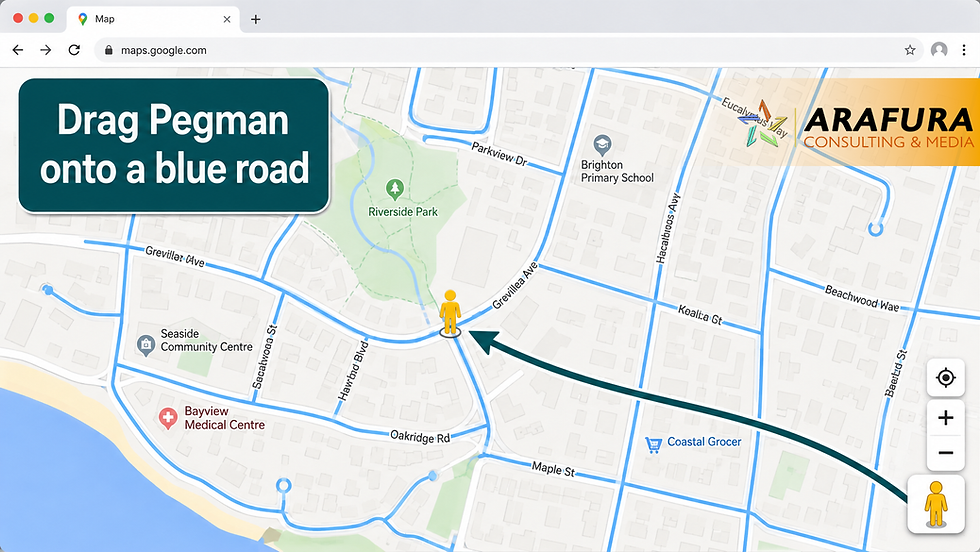
Alternatively, look for the small yellow person near the bottom-right corner of the map. Google calls this figure Pegman.
Click and hold Pegman, then drag him over the map. Roads with Street View photographs will turn blue. Release Pegman over the blue road you want to visit.
You should now see the street as though you were standing on it. Google’s current computer instructions support both methods.
Step 4: Look around
Click and hold anywhere on the photograph, then gently move your mouse left or right. You can also move it up or down.
This lets you:
turn around;
look across the road;
look towards a building; or
examine the surrounding area.
Use the plus and minus controls to zoom in or out. A mouse wheel may also control the zoom.
Some signs and small details will remain difficult to read because Street View is made from photographs taken from a moving vehicle.
Step 5: Travel along the street
Move your pointer over the road. Arrows or a line should appear.
Click farther along the road to move in that direction. Continue clicking to “walk” along the street.
Movement can sometimes feel jumpy because you are moving between separate photographs rather than watching a video. That is normal.
Take your time and look for familiar clues:
the shape of the road;
an old fence or large tree;
neighbouring buildings;
a park, shop or intersection;
hills or other features in the distance; and
the route you once travelled.
Step 6: Look for older photographs
Once you are in Street View, look for See more dates.
On a computer, this option commonly appears in the information box near the top-left corner. Click it to open a row of available photographs.
Each small photograph should show the month and year in which it was captured. Select one to see how the location looked at that time.
Historic photographs are not available everywhere. Some places have images covering several different years, while others may have only the latest view.
Try moving between the oldest and newest photographs. Look for changes such as:
buildings being renovated or demolished;
new houses appearing;
trees growing or disappearing;
shop names changing;
roads being widened;
empty land being developed; or
gardens and fences changing over time.
Do not be surprised if the oldest available Street View image is still much newer than your memories. Street View will not take you back to the 1950s or 1960s, but it may still reveal an earlier version of a place that matters to you.

Option 2: Using a phone or tablet
The instructions are broadly the same for Apple and Android devices.
Step 1: Open Google Maps
Find and open the Google Maps app.
If it is not installed:
on an iPhone or iPad, open the App Store;
on an Android device, open the Google Play Store; and
search for Google Maps.
Check that the app is published by Google LLC before installing it.
Step 2: Search for the place
Tap the search box at the top of the screen.
Enter the address, school, business, landmark or town you want to find. Tap the correct result.
Step 3: Open Street View
If a small street photograph appears near the bottom of the screen, tap it.
If you cannot see one:
Tap the Layers symbol near the top-right of the map. It resembles two shapes stacked on top of each other.
Select Street View.
Close the Layers panel.
Tap one of the blue lines on the map.
The blue lines indicate roads and paths for which Street View imagery is available.
Step 4: Look and move around
Drag one finger across the photograph to turn your view.
To move along the road, tap an arrow or double-tap farther along the street.
To see more detail, place two fingertips together on the screen and spread them apart. This is called “pinching out.” Bring your fingers together again to zoom out.
Turning the device sideways may provide a larger, more natural view.
Step 5: Look for older photographs
While viewing the street, tap See more dates, if it appears.
A row of available images will open near the bottom of the screen. Move through the images and tap the date you want to view.
Not every location has this option.
What did you discover?
Pause for a moment and think about what you found.
Did the place look smaller than you remembered? Was the street busier, quieter or greener? Is the house still there? Can you still recognise the route you once walked?
Maps are usually thought of as tools for finding our way somewhere new. They can also help us recover details from places we once knew extremely well.
Consider writing down some memories while they are fresh. A few simple questions may help:
Who lived there with you?
What could you see from the front door?
Who lived next door?
Where did you play?
Which shops did your family visit?
How did you travel to school or work?
What sounds or smells do you associate with the area?
What has changed—and what has remained surprisingly familiar?
These notes could become the beginning of a family history or a story to share with younger relatives.
Something Extra to Try - Follow Your Old Route
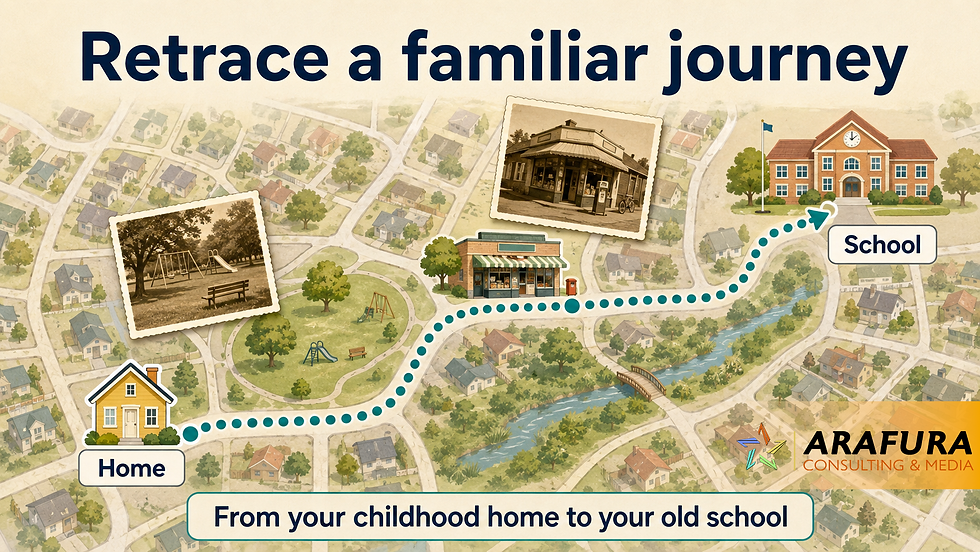
Rather than visiting only one address, try retracing a familiar journey.
You might follow:
the walk from home to school;
the trip to a grandparent’s house;
the route to your first job;
a favourite Sunday drive;
the road to a former holiday destination; or
the main street of your old town.
Street View may not cover private roads, footpaths or every rural area, but you can often follow much of the journey.
Revisit a place with someone else
Sit with a partner, sibling or old friend and explore together. One person may remember details that the other has forgotten.
This can be particularly enjoyable during a video call. Share your computer screen, open the old neighbourhood and take the other person on a guided tour.
Compare several years
Where older photographs are available, start with the earliest image and move forward one date at a time.
This can create a simple photographic timeline of the street. You may spot gradual changes that are less obvious when comparing only the oldest and newest views.
Share a Street View location
On a phone or tablet, tap the Street View image to display its controls, then tap the Share symbol.
On a computer, you can usually use the three-dot menu beside the location details and choose Share or embed image.
You can then send the link by email or message.
Before sending it, include a short explanation, such as:
“This is the house where Grandma lived. Turn the view to the left and you can see the park where we used to play.”
Only share a location when you are comfortable revealing it to the recipient.
A short privacy and safety note
Exploring Street View is generally low-risk, but a few sensible precautions are worthwhile.
You do not need to publish personal information
Simply looking at a location does not tell other Google Maps users why you searched for it. You do not need to post your memories, add photographs or write a public review.
If you share a Street View link on Facebook or another public service, remember that other people may be able to identify the address. If the link is for a family home or another sensitive location, send it privately to people you trust.
Street View photographs are not live
The image does not show what is happening at the location now. The month and year in which the image was captured will usually appear on the screen.
Google automatically attempts to blur identifiable faces and vehicle registration plates. If you find an image that shows your face, home, or other identifying information, you can use the Report a problem option to ask Google to blur it.
Google warns that an approved blur is permanent, so a request to obscure an entire home should be considered carefully.
Be Careful When Installing the App
Only install Google Maps through the official Apple App Store or Google Play Store. Do not follow an unexpected email, text message or pop-up claiming that you must install a special Street View program.
Google will not require remote access to your computer or ask you to pay a fee merely to view a street.
How to Undo it or Get Help
There is very little to undo because exploring Street View does not alter the map.
To Exit Street View on a Computer
Click the back arrow near the top-left of the screen. Depending on the view, you may instead see a close symbol.
This returns you to the ordinary map.
If you feel lost, close the browser tab and open Google Maps again. Nothing will be damaged or deleted.
To Exit Street View on a Phone or Tablet
Tap the back arrow near the top-left of the screen.
If the Street View layer remains visible:
Tap Layers.
Tap Street View to switch it off.
Close the Layers panel.
If the Place is Wrong
Check the suburb, town, state and postcode in the search result. Many Australian streets share the same name.
Delete the search and try again with more information, such as:
Smith Street, Darwin, Northern Territory
instead of simply:
Smith Street
If Street View is Unavailable
Street View does not cover every road or property.
If you cannot find what you're looking for, try:
moving to the nearest blue road;
searching for a nearby landmark;
looking from the opposite side of the street;
switching to the Satellite map; or
returning later, as imagery may be added or updated.
If You Need a Hand
Ask a trusted friend or family member to sit with you or talk you through the steps.
Arafura Consulting & Media can also provide friendly technology assistance without jargon or pressure. There is no embarrassment in asking for help; even confident technology users occasionally find Google Maps controls fiddly.
Printable quick-reference guide
Revisit Your Past with Google Maps and Street View
On a computer
Open your internet browser.
Go to maps.google.com.au.
Enter an address or place in the search box.
Click the Street View photograph—or drag the yellow Pegman onto a blue road.
Click and drag the photograph to look around.
Click along the road to move.
Select See more dates to look for older photographs.
Use the back arrow to return to the map.
On a phone or tablet
Open the Google Maps app.
Search for an address or place.
Tap the Street View photograph.
If no photograph appears, tap Layers, select Street View and tap a blue road.
Drag one finger to look around.
Tap an arrow or double-tap the road to move.
Tap See more dates if the option appears.
Tap the back arrow when finished.
Remember
Blue roads have Street View imagery.
Older photographs are not available everywhere.
Street View images are photographs—not a live broadcast.
Be cautious about sharing private home addresses publicly.
You cannot damage Google Maps by exploring.
If you become lost, close Google Maps and begin again.
A Small Challenge
Find one place that holds a happy memory. Explore the surrounding street and share the story of that place with someone you care about.
Tech for the Fun of It is an Arafura Consulting & Media series exploring simple, enjoyable things you can do with everyday technology—clearly and without jargon.




Comments