
Setting Up a New Android Phone: A Simple Guide for Australians

If you’ve just bought a new Android phone, you might be feeling a mix of excitement and uncertainty — especially if this is your first time using an Android device.
That’s perfectly normal. Many senior Australians and small business owners tell us the same thing: “I just want to set it up properly and not break anything.”
The good news is that Android phones are designed to guide you step by step.
Let’s go through it slowly, in plain English.
First-Time Setting Up Android Phone: Start Here
Step 1: Turn the phone on

Press and hold the power button on the side.
Select English and Australia when asked.
Step 2: Connect to Wi-Fi
Choose your home or office Wi-Fi network.
Enter the password carefully.
This allows your phone to update itself and keeps things secure.
Step 3: Sign in with a Google Account
Android phones use a Google Account to:
Download apps
Back up contacts and photos
Help locate your phone if it’s lost
If you already use Gmail, you already have one. If not, choose Create account and follow the prompts.
Senior tip: Write your Google email and password down and keep them somewhere safe.
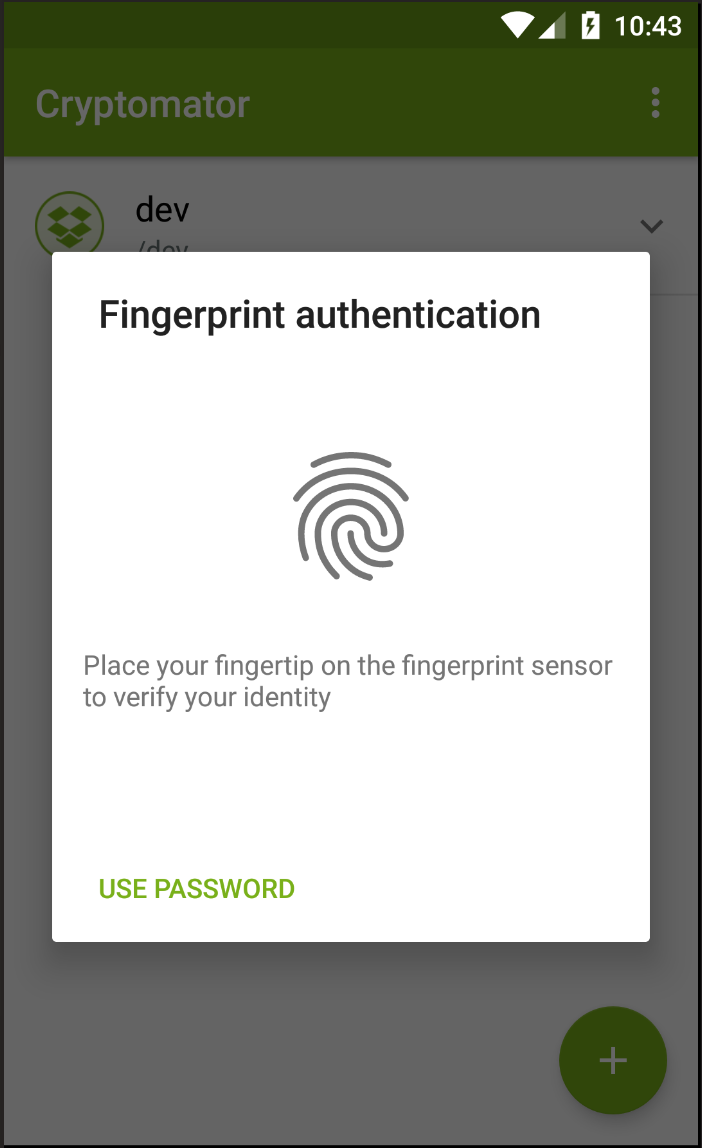
Step 4: Set a lock screen (very important)
You’ll be asked to choose:
A PIN
A pattern
Or fingerprint unlock
This protects your personal and business information if your phone is lost or stolen.
 |  |
Step 5: Let the phone finish setting itself up
Your Android phone may:
Install updates
Optimise apps in the background
This can take 10–20 minutes. That’s normal.
Upgrading from an Older Android Phone?
If you’re moving from one Android phone to another, setup is usually very smooth.
The easiest option: Transfer from your old phone
During setup, your new phone will ask if you want to:
Copy apps, contacts, photos, and messages
Transfer data using a cable or Wi-Fi
Follow the on-screen instructions carefully and keep both phones nearby.
Tip: If you have lots of photos or videos, the transfer can take some time. Be patient.
Using your Google backup
If your old phone isn’t available:
Sign in with your Google Account
Restore from your most recent backup
This works well for most people.
Important Settings to Check After Setup
Once setup is complete, we recommend checking a few key settings:
System Updates:
Settings → Security & updates
(Keeps your phone protected)
Find My Device:
Settings → Security → Find My Device
(Helps recover a lost phone)
App Permissions:
Only allow apps access to what they genuinely need. For business owners, this is especially important for email, banking, and accounting apps.
A Note for Seniors and Business Owners
You don’t need to master everything on day one.
Start with:
Phone calls
Messages
Camera
Email
Everything else can come later. A properly set-up Android phone should make life simpler, not more stressful. If something doesn’t feel right, it’s best to ask for help early.
Local Help You Can Trust
At Arafura Consulting & Media, we help Australians:
Set up Android phones safely
Understand security settings
Reduce scam and fraud risks
Feel confident using everyday technology
Friendly, local support — no jargon, no judgement.



Comments