
New iPhone SetUp Guide: A Simple Guide for First-Time Users (and Upgraders)

Buying a new iPhone is exciting — but if you’ve never owned an Apple device before, it can also feel a little daunting. You’re not alone. Many senior Australians and small business owners tell us the same thing: “I just want it to work properly without messing it up.”
The good news? Apple has made iPhones easier than ever to set up. Let’s walk through it together, step by step, in plain English.
First-Time iPhone Owners Setup Guide: Start Here
If this is your first ever Apple device, take your time. There’s no rush.
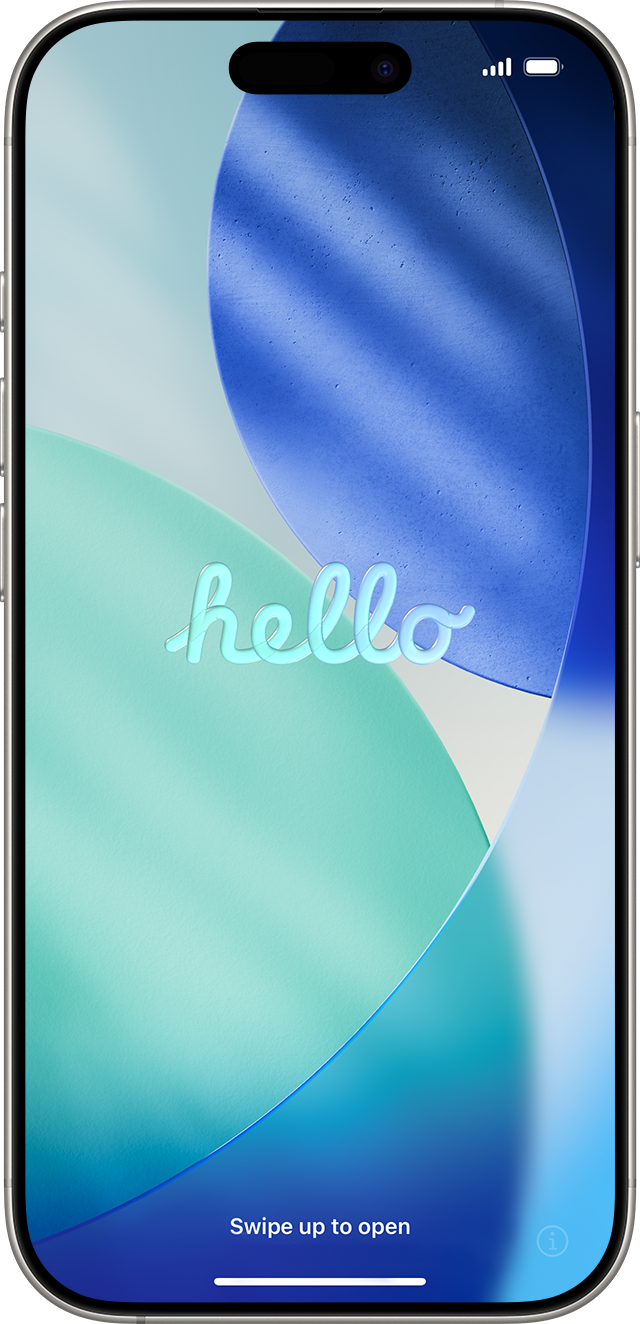
Step 1: Turn it on
Press and hold the side button until you see the Apple logo.
Choose English and Australia when prompted.
Step 2: Connect to Wi-Fi
Select your home or office Wi-Fi network.
Enter the password carefully — this is important for updates and security.
Step 3: Create (or sign in to) an Apple ID
An Apple ID is your personal Apple account. It lets you:
Download apps
Back up photos and contacts
Find your phone if it’s lost
If you don’t already have one:
Choose Create Free Apple ID
Use an email address you check regularly
Write the password down somewhere safe
👉 Tip for seniors: Apple will ask security questions — choose answers you’ll remember.
Step 4: Set up Face ID or a Passcode
Face ID lets you unlock your phone just by looking at it
You’ll also create a 6-digit passcode as a backup
This protects your personal and business information if your phone is ever lost.

Step 5: Let the phone finish setting itself up
Your iPhone may:
Download updates
Adjust settings automatically
This can take 10–20 minutes, although it's usually much quicker. That’s normal and the quality of your wi-fi connection can affect this time frame.
Upgrading from an Older iPhone? This Part’s for You
If you’re moving from an older iPhone to a new one, Apple makes it surprisingly smooth and easy to do.
The easiest method: “Quick Start”
Turn on your new iPhone and place it next to your old iPhone
Follow the on-screen instructions
Your apps, photos, contacts, and settings transfer automatically
Tip: Keep both phones plugged into the power outlet and be patient. Large photo libraries take time.
Using iCloud instead
If your old phone isn’t nearby:
Sign in using your Apple ID
Restore from an iCloud backup
This works well — just make sure you know your Apple ID password.
Important Settings We Recommend Checking
Once setup is complete, take a few minutes to review these:
Software Updates:
Settings → General → Software Update
(Keeps your phone secure)
Find My iPhone:
Settings → Your Name → Find My
(Helps recover a lost phone)
App Permissions:
Only allow apps access they truly need. For business owners, this step is especially important for email, banking, and accounting apps.
A Note for Seniors and Small Business Owners
You don’t need to learn everything at once. Start with:
Phone calls
Messages
Camera
Email
Everything else can wait. A properly set-up iPhone should make life easier, not harder.
This iPhone setup guide should answer all your questions and have you up and running in no time. If you feel unsure about something, ask for help early — before frustration sets in.
Need a Hand?
At Arafura Consulting & Media, we help Australians:
Set up new phones safely
Understand security settings
Avoid scams and data loss
Feel confident using everyday technology
Friendly, local help — no jargon, no judgement



Comments